

Salesflare
Can I write emails using AI?
Does Salesflare have an AI email writing feature?
 Jeroen CorthoutLast updated:
 Yes, you can!
Writing sales emails is one of those things that sounds easy until you actually have to do it all day.
You want to sound personal. You want to sound sharp. You want to move fast. And ideally, you don’t want every email to feel like you’re starting from zero.
That’s exactly why we built AI email writing into Salesflare.
Instead of forcing you to jump between your CRM and some generic AI tool, Salesflare helps you write and rewrite emails right where you already work: in the email editor itself.
The feature lives behind a new Assist button and supports writing from scratch, adjusting a draft, correcting mistakes, polishing wording, changing tone, making emails longer or shorter, personalizing them, and translating them.
Here’s how to use it. 👇
Where to find it
Open the email composer in Salesflare and look for the new Assist button in the toolbar.
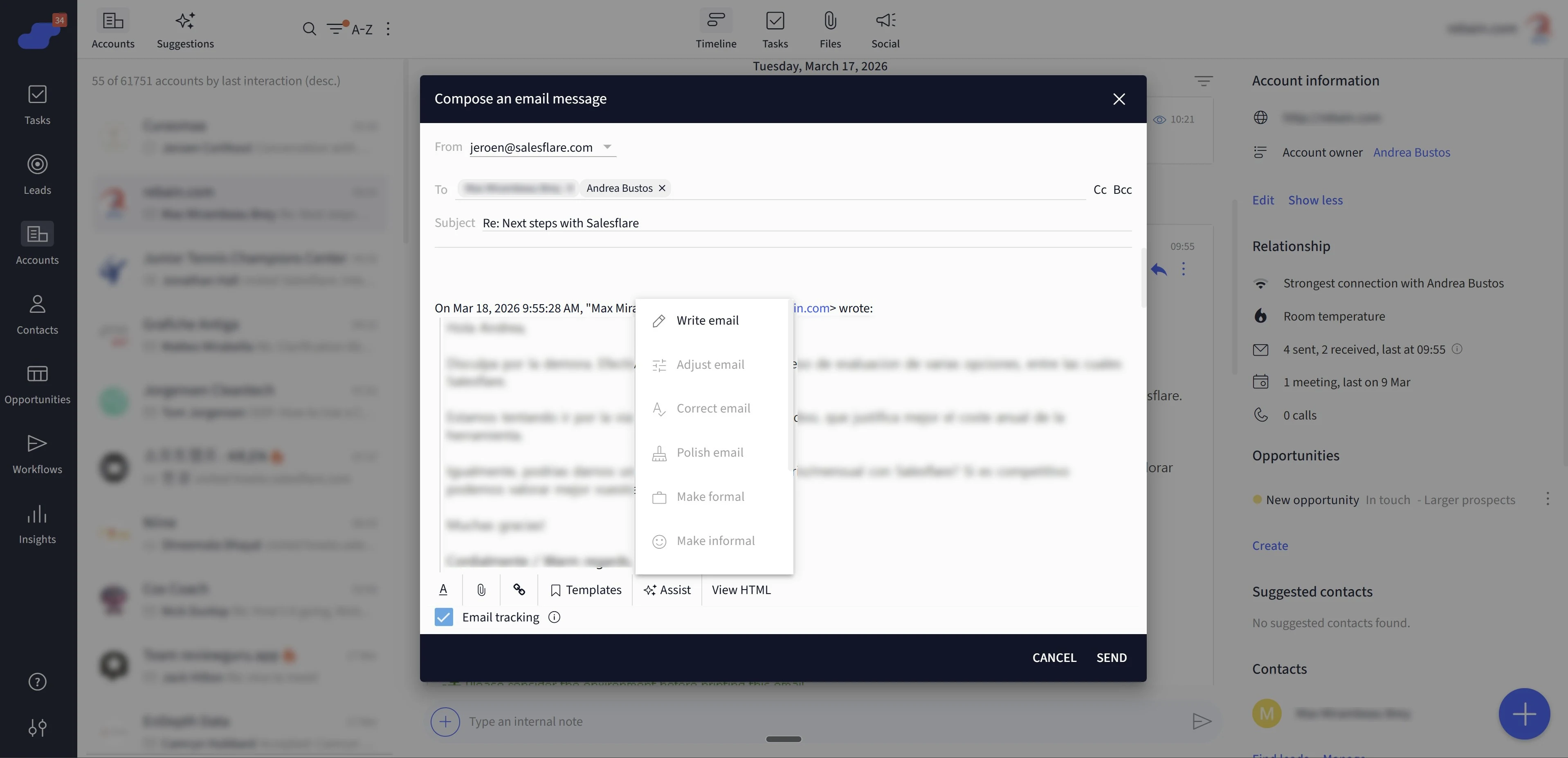
Click it, and you’ll see a list of AI actions you can run on your email:
Write email
Adjust email
Correct email
Polish email
Make formal
Make informal
Make longer
Make shorter
Personalize email
Translate email
That’s the whole idea: no complicated workflow, no separate AI window, no copy-pasting back and forth.
The possibilities
Start with “Write email” when you have a blank page
This is the easiest entry point.
If you’re starting a new email or replying and don’t quite know how to begin, click Assist and choose Write email. Salesflare will ask you for a short instruction, then generate a draft for you. “Write email” is meant for starting a thread or writing a reply based on a few words of input.
This works best when you give it a concrete prompt. For example:
“Follow up after our demo and suggest two moments next week”
“Reply positively and ask what their current CRM setup looks like”
“Reach out cold to this lead and keep it short and friendly”
You do not need to over-prompt it. A short, clear instruction is usually enough.
Use “Adjust email” when the draft is close, but not there yet
This is probably the most useful action in day-to-day work.
You already wrote something. It’s not bad. It’s just not quite right.
Click Adjust email, tell Salesflare what to change, and let it rework the draft based on your instruction. Under the hood, this action is designed specifically for “the user has an email draft and needs specific adjustments.” It can use the current draft, selected text, the previous email, account context, and your AI email settings if available.
Good instructions here are things like:
“Make this more direct”
“Sound warmer, but keep it professional”
“Make this clearer for a non-technical buyer”
“Add a better closing line”
“Take out repetition”
This is where AI becomes genuinely useful: not as a replacement for your judgment, but as a fast editor.
Correct email
Use this when the message is fine but you want spelling, grammar, and punctuation cleaned up without changing the tone or meaning.
Polish email
Use this when the email needs to sound smoother and more natural. This one improves clarity and style while keeping the meaning and tone intact.
Make formal
Use this when your draft is too casual for the situation and you want a more professional tone.
Make informal
Use this when your message sounds too stiff and you want it to feel more human and conversational.
Make longer
Use this when the email is too thin and could use a bit more explanation or context. This action can also take the ongoing discussion and account timeline into account, so it is not just padding for the sake of padding.
Make shorter
Use this when you already said what you need to say, but in too many words. This one trims redundancy while trying to keep the core message and tone.
These actions matter because most sales emails do not need a full rewrite. They need one good pass.
Personalize emails without making them creepy
The Personalize email action is meant to make a draft more relevant by incorporating recipient details or recent interactions. It can also use previous emails and account timeline context if available.
That means it is not just sprinkling in a first name. It is meant to pull in the context you already have in Salesflare and use it to make the email more specific.
This is where the real value sits.
Generic AI can write generic sales emails all day long. The reason this feature is more useful is that it is built to work with:
the email you are replying to
the current draft
selected text
the account timeline
your own email style
That combination is what makes the output feel less robotic and more usable.
Translate emails when you need to switch languages fast
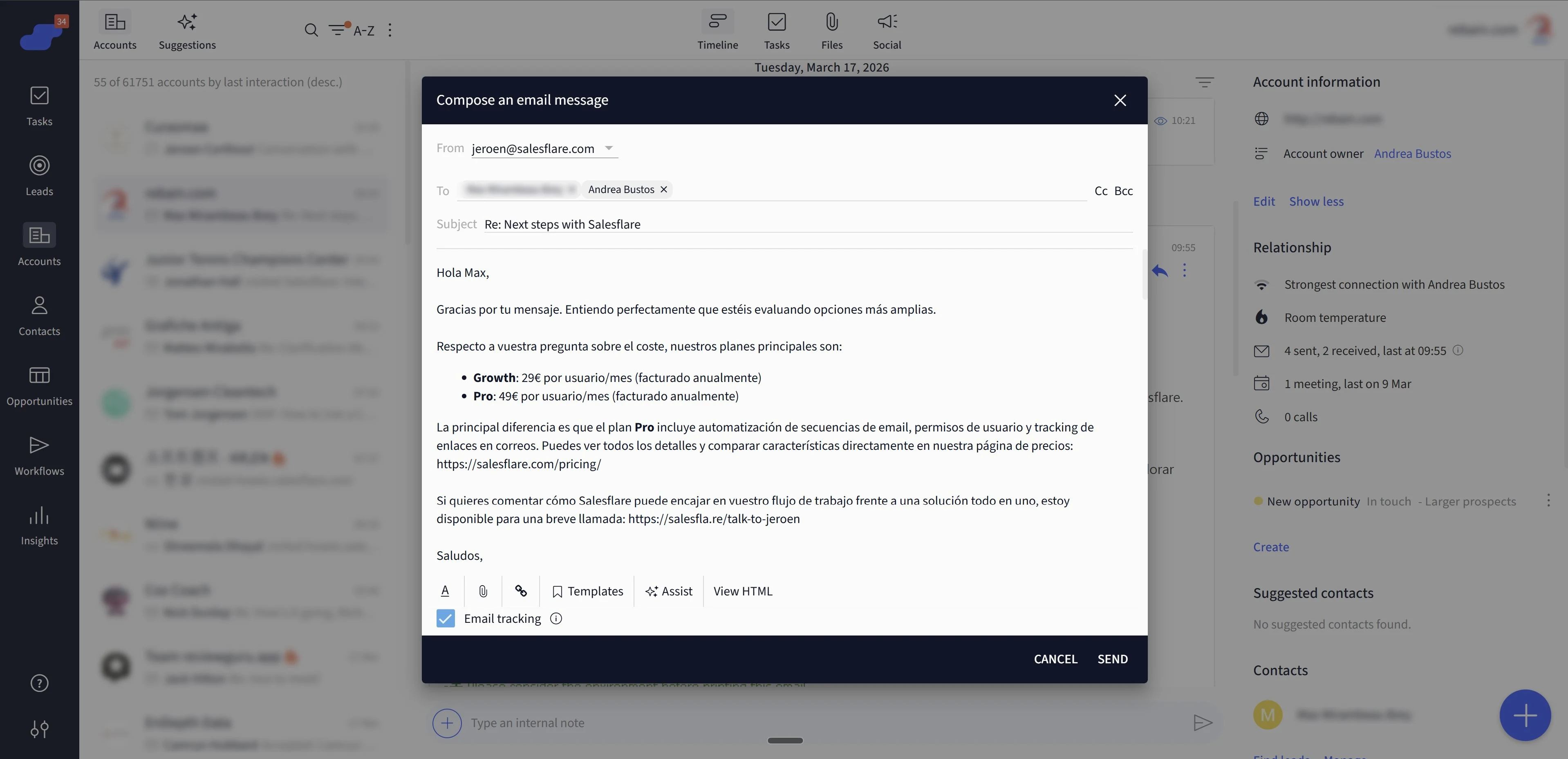
If you need to send the same message in another language, click Translate email and choose the target language.
It will preserve tone, preserve formality level, preserve meaning, and avoid translating names, company names, or email addresses.
That last part matters more than it sounds. Bad translation tools often break names, brands, or email formatting.
What makes the writing feel more like you
This is the part that matters most.
Salesflare’s email AI is not only looking at the current email. It can also generates an AI personalization settings from your recently sent emails and LinkedIn profile.
Those settings can include:
a description of who you are
a description of your company
tone-of-voice guidelines
formatting habits
meeting-booking habits
your most frequent language
keywords you often use
snippets you often reuse
typical greetings and sign-offs
In other words, the system is not just trying to write a “good email.” It is trying to write an email that sounds more like you.
A few practical tips to get better output
You can use it like this:
Start with Write email when you are blank.
Use Adjust email when your draft is 70% there.
Use Polish or Shorten when the message is basically done.
Use Personalize when you want to add relevance from CRM context.
Use Translate only after the core message is right.
A few tips that usually make the output better:
Be specific in your instructions. “Make it better” is vague. “Make it shorter, warmer, and end with a question” is much better.
Do one thing at a time. If you ask for shorter, more formal, more persuasive, more playful, and translated in one go, you are making the model juggle too much.
Use selection when possible. If only one paragraph is weak, fix that paragraph.
Treat AI as a strong first draft or editor. The fastest workflow is usually: generate, tweak, send.
That's all we have. If you have any further questions about our email AI or anything else, reach out to us on the chat!