

Salesflare
How can I turn off my Microsoft 365 Anti-spam outbound spam policy?
How can I stop Microsoft 365 from blocking my email workflows?
 Jeroen CorthoutLast updated:
 Microsoft 365 has an outbound spam policy that can restrict users from sending emails when they reach certain sending limits.
This can sometimes interfere with sending emails from Salesflare through your connected Microsoft 365 mailbox.
You can’t fully turn off the default Microsoft 365 outbound spam policy, as Microsoft keeps it always enabled. What you can do is set it to "No action, alert only".
This means Microsoft will alert your admins when a sending limit is reached, instead of automatically blocking the user from sending more emails.
How to set your Microsoft 365 outbound spam policy to alert-only mode
Here's how to make the change step by step:
Open the Microsoft Defender portal.
Go to Email & collaboration.
Click Policies & rules.
Go to Threat policies.
Click Anti-spam.
Open Anti-spam outbound policy (Default).
Click Edit protection settings.
Find Restriction placed on users who reach the message limit.
Change this setting to No action, alert only.
Save your changes.
For steps 1 to 5, you can also click directly to https://security.microsoft.com/antispam
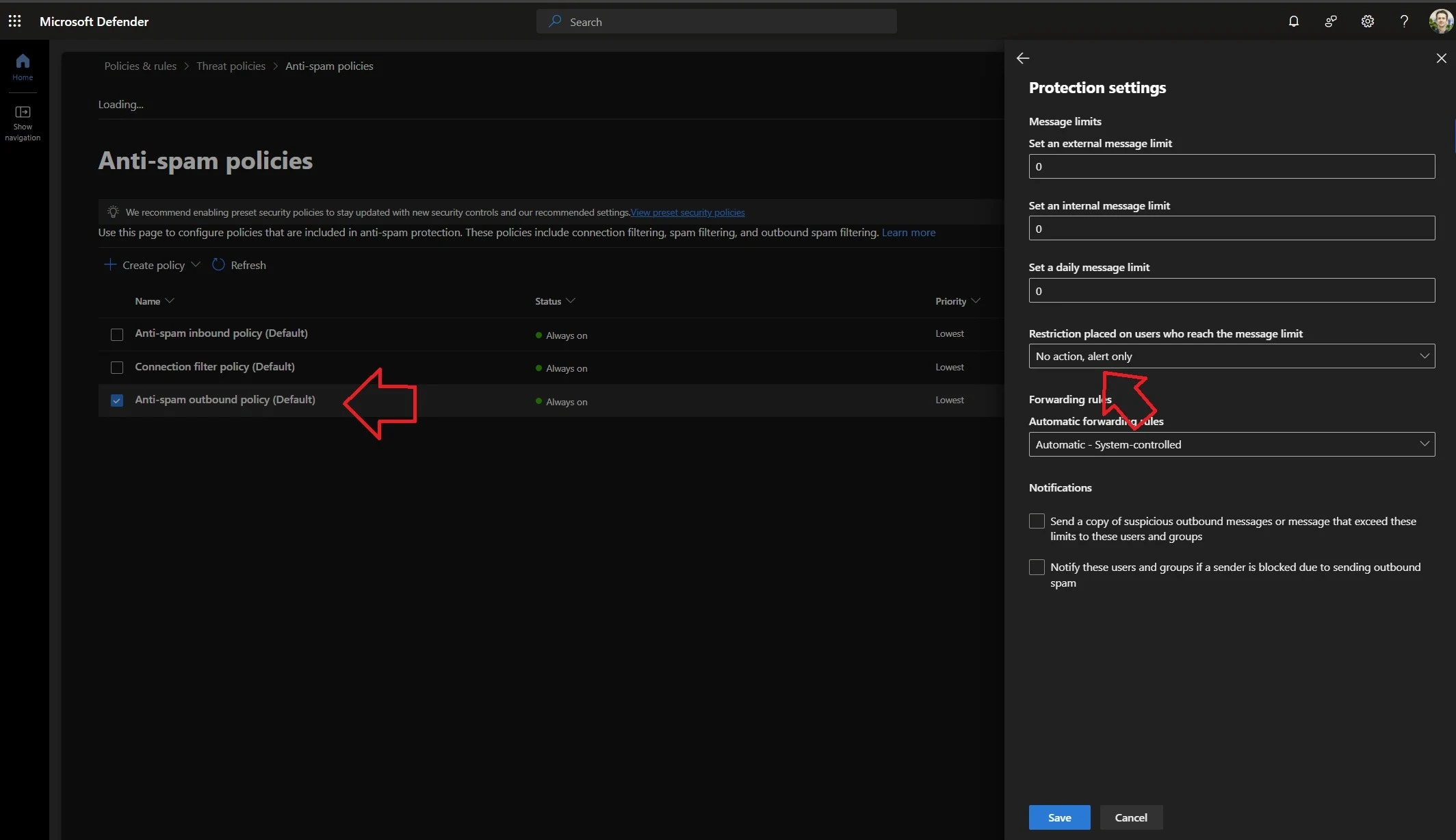
That’s it. Microsoft 365 will now alert your admins when a sending limit is reached, instead of automatically restricting the user from sending emails.
Can I fully turn off the policy?
Not if you’re using the default outbound spam policy. Microsoft keeps this policy always enabled.
If you created a custom outbound spam policy, you can turn that custom policy off. But the default policy will still remain active.
What should I choose?
We recommend using No action, alert only instead of fully disabling protection where possible.
This keeps you informed about unusual sending activity, while avoiding automatic blocks that can interrupt legitimate email sending.
Any remaining questions? Just reach out to us on the chat!