# How do I export and merge my Salesflare data in one place?
Can I export all of my data (accounts, import, and opportunities) from Salesflare together?
You can [export all of your data](/en/articles/633823-how-do-i-export-my-salesflare-data) from Salesflare by clicking on the 3 dot menu on each page.
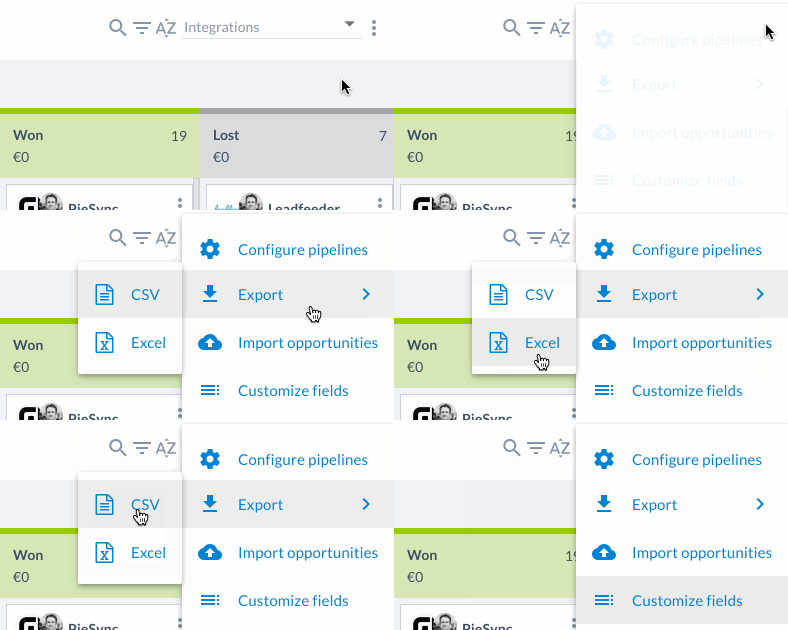
The Excel or CSV file will contain an export of all related data. Just delete the columns you don't need and merge them together as we’ll explain below.
# How do I merge the data together?
## Step 1:
Create a new Excel workbook. For example, I have made a new workbook named “[VLOOKUP-sample](https://downloads.salesflare.com/resources/VLOOKUP-sample.xlsx)” here.
## Step 2:
Copy all the sheets you want to merge (accounts, contacts, and opportunities) into the new workbook you created. The easiest way to do it :
* Right-click on the bottom of the exported sheet
* Click on “Move or Copy”
* Choose the workbook you want to move it to
* Click “Okay”
**_Note:_** _Usually, one account can have multiple opportunities and contacts, so, it is best to merge accounts into opportunities or contacts. That way you have a different row for each opportunity or contact. In this example, I will show you how to merge contacts and accounts_
## Step 3:
Delete the columns that are not needed (helps you keep it clean)
## Step 4:
We use a VLOOKUP formula for merging the data, in which we use the **account id** to find matching data (as it is unique and also present in all three sheets).
**_Note_**: _If you are using another value than the account id, like the account name, always make sure to move that data to the first column. You can only do a VLOOKUP based on the first column of a range_
## Step 5:
Copy the headings of columns from accounts you want to merge into contacts.
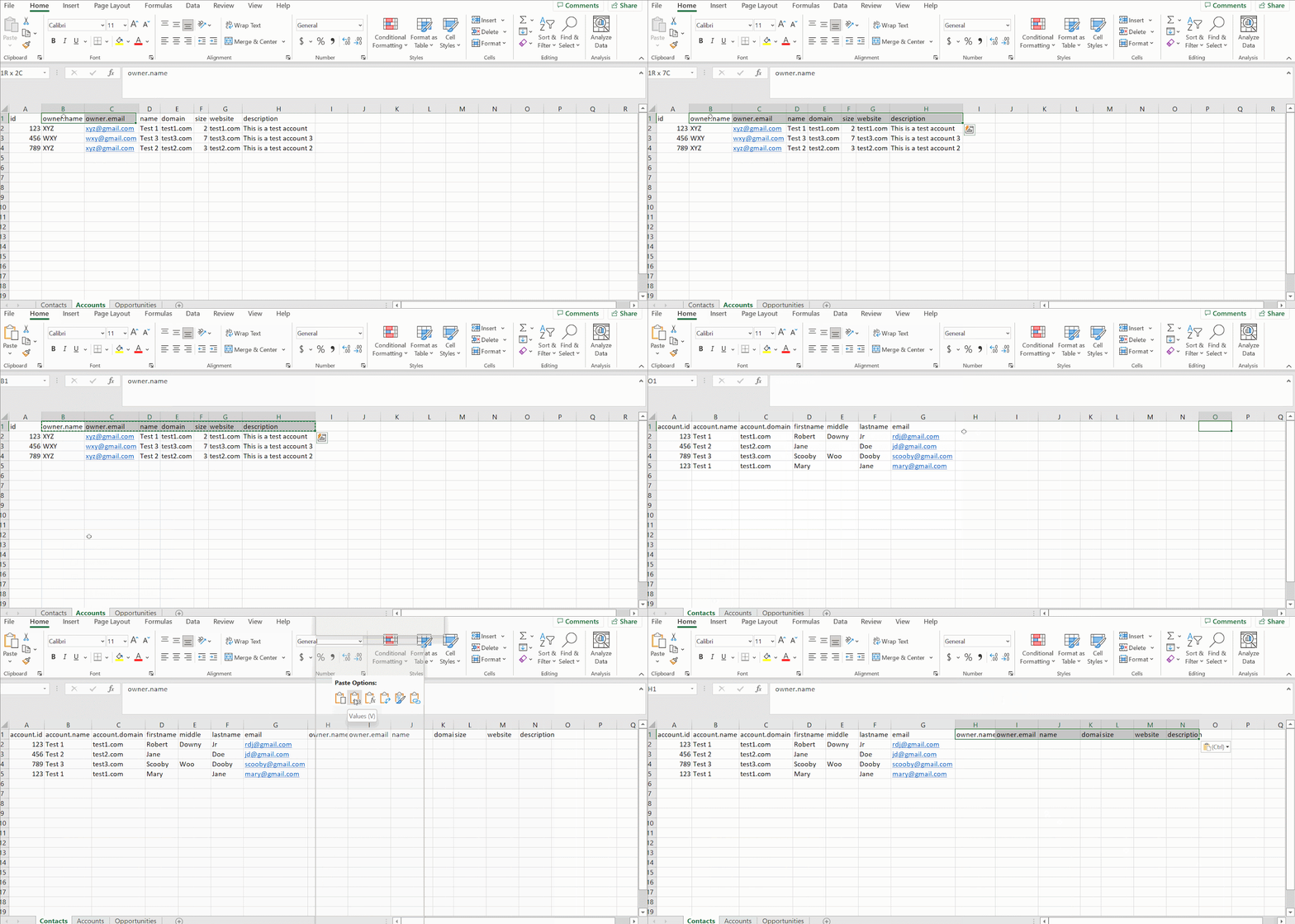
_Example of the Accounts headings being copied into the Contacts sheet_
## Step 6:
Use the VLOOKUP formula shown below for merging the data (here is [a sample file](https://downloads.salesflare.com/resources/VLOOKUP-sample.xlsx) for your reference)
**`=VLOOKUP($A2,Accounts!$A$1:$H$4,MATCH(Contacts!H$1,Accounts!$A$1:$H$1,0),FALSE)`**
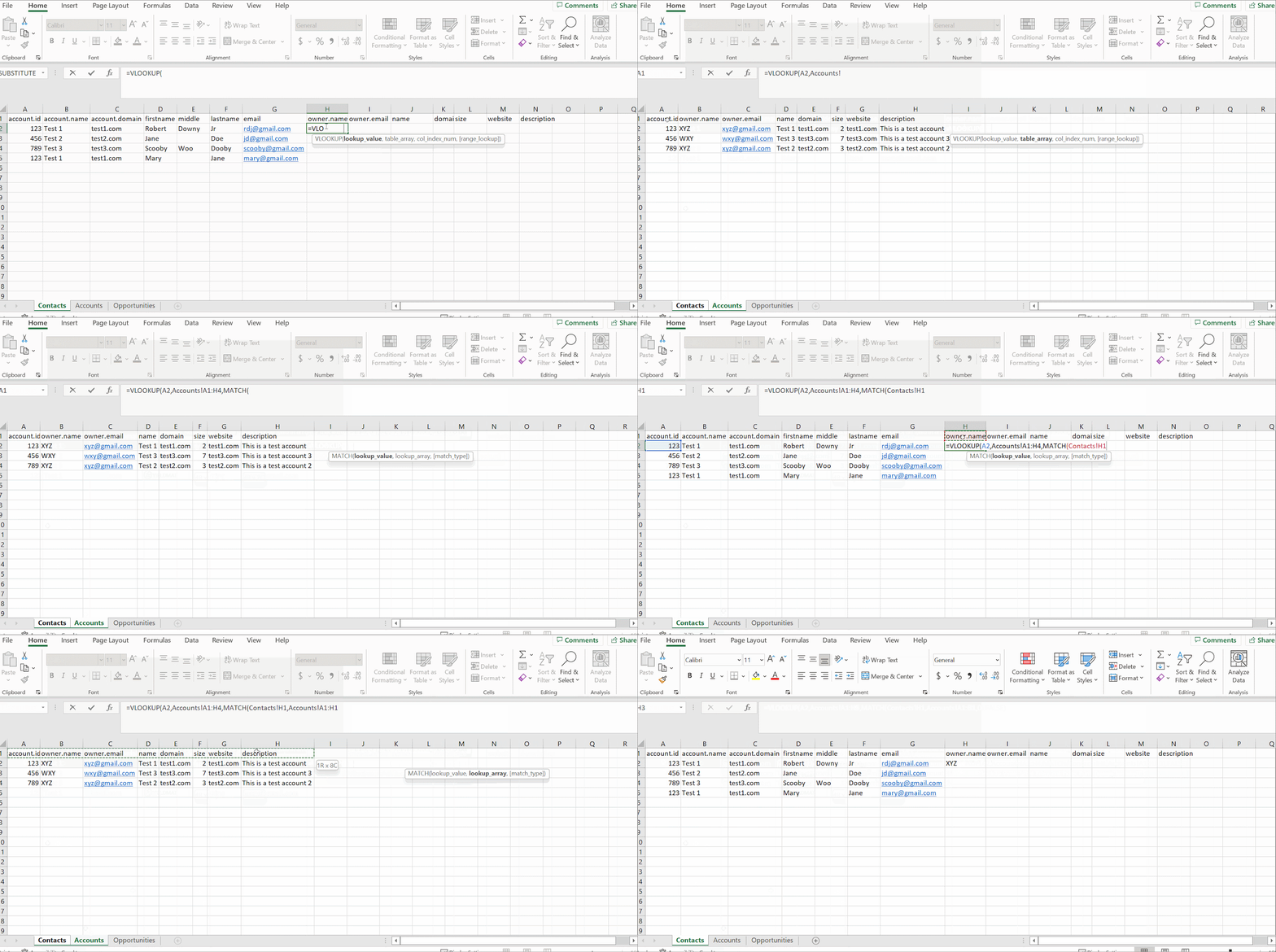
_Example of using VLOOKUP to merge Accounts into the Contacts sheet_
## Step 7:
Use the $ sign to avoid the cell reference from changing
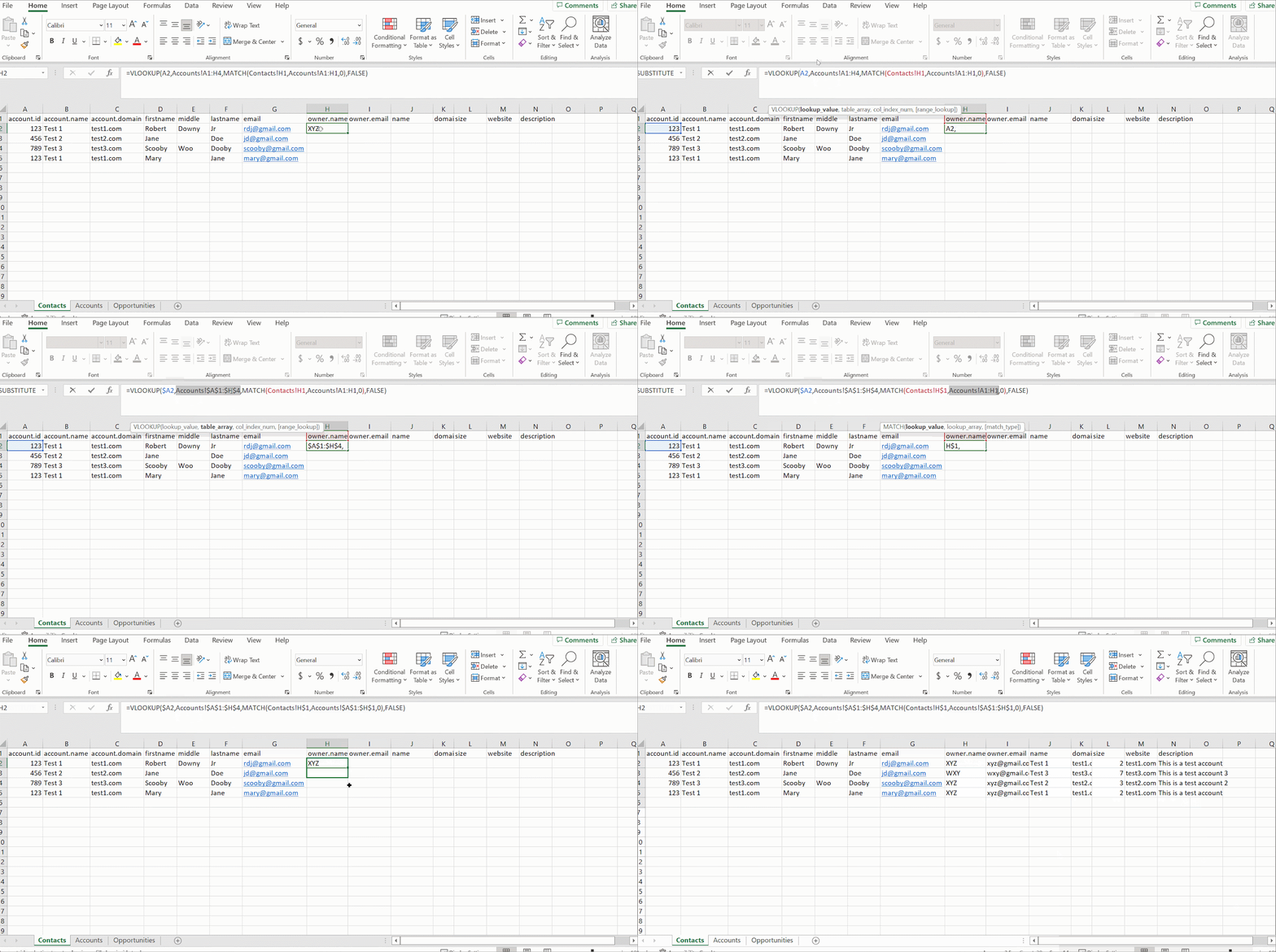
_Example of the use of "$" on all the cell references and lookup ranges_
Voila! 🪄 Repeat the same process for opportunities or any other data you want to merge.
[Download a Sample Workbook Here](https://downloads.salesflare.com/resources/VLOOKUP-sample.xlsx)